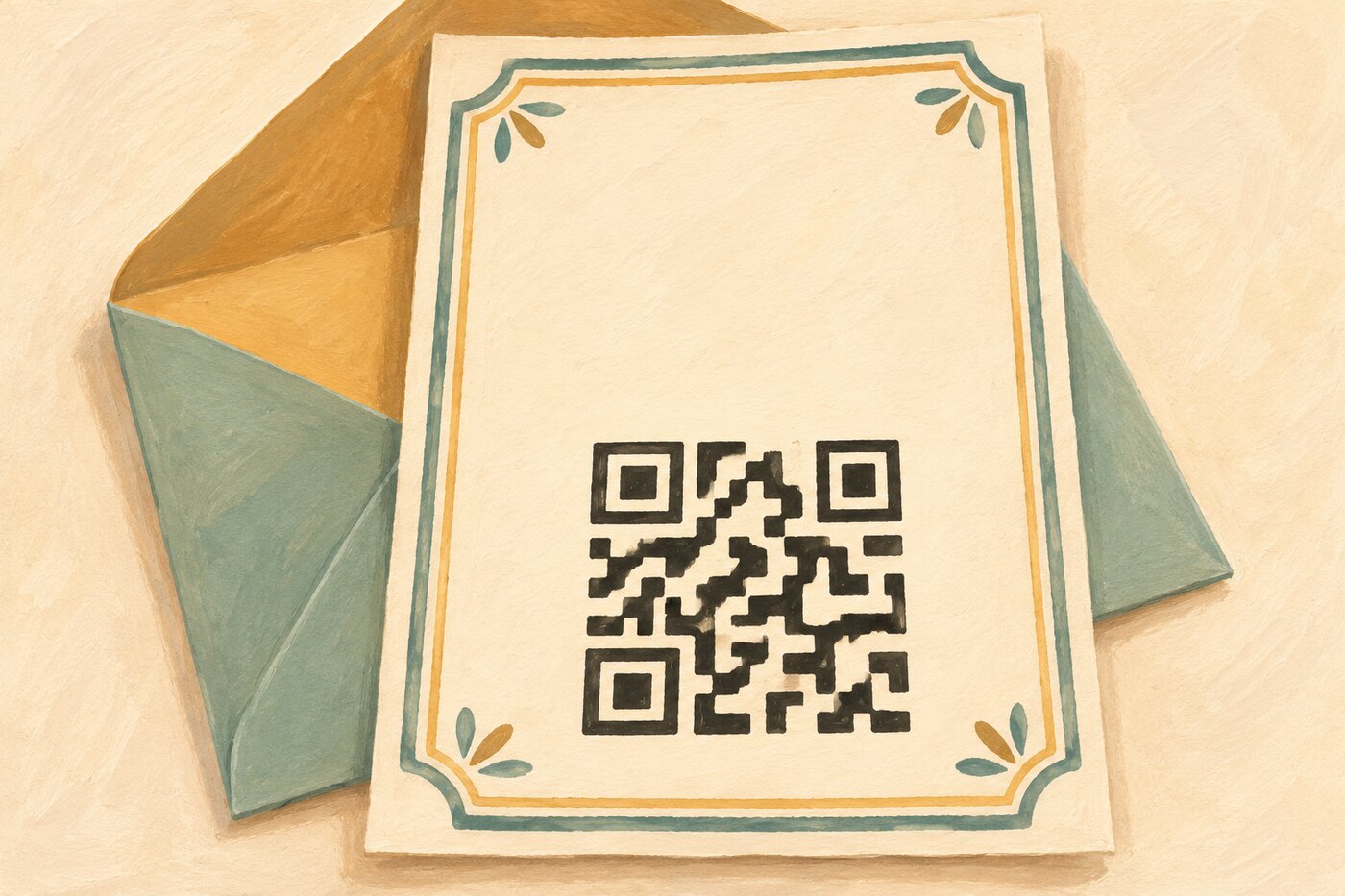
Encode one current guest link. Place a dark QR code on a plain light background, leave clear space on all four sides and label it so guests know what it opens. Scan a print proof and check the destination while signed out of the owner account.
Choose the link guests will use
Use the same link you would send a guest in a message. Open it in a private browsing window and look for the gift list you expect. If it opens an editor, asks for the owner’s login or contains personal tracking parameters, copy the guest link again. Leave contact details, home addresses and identifiers for individual guests out of the code.
If gifts are the only reason to scan, point the code to your own guest list. See how a wedding list works by link. For gifts alongside event details, see the single-link wedding page. Check that the list is easy to find on a phone. These guides are in Russian.
Place the code on the invitation
- Make a QR code from the checked link. Keep it square and leave the pattern intact.
- Add a clear label such as “Scan to view our gift list”. To make the choice optional, try “If you’d like to choose a gift, here are a few ideas”.
- Leave a clear margin. Keep borders, illustrations and folds out of that space. Allow for trimming near an edge.
- Have a copyable link ready for a digital invitation or a message. This gives guests a second way in if they cannot scan the card.
Check the print proof
| Check | Ready for the print run when… |
|---|---|
| Size and paper | The code scans at the actual invitation size, on the chosen paper. |
| Contrast | More than one phone reads it in ordinary light, without glare or decoration getting in the way. |
| Destination | The scan and the backup link both open the intended guest page. |
| On a phone | The list is visible and guests can see what to do next. See the guest guide in Russian. |
If invitations are already printed
After any update to the list, scan the printed code again. If the guest address has changed, send the current link by message. If you have printed a proof only, fix the design or link before ordering the run.
If you still need a guest link
Create a wedding page with a gift list on Osanta and share its guest link. A new organiser needs an email address for access. Make the QR code separately once you have tested the link.
Preparing a wedding?
Create a wedding wishlist so guests can choose useful gifts and reply about attendance.
Questions on this topic
Do I need a different QR code for each invitation?
One guest link is enough for a shared list. Test it without signing in as the owner.
How large should the code be?
That depends on the layout, print and scanning distance. Test a full-size proof. Enlarge the code if people have trouble scanning it.
Can I use a light code on a dark background?
A dark code on a light background is a straightforward starting point. Test any other design on the chosen paper and on multiple phones.
What if the link breaks after printing?
Check whether the guest page can still open at the printed address. If the address has changed, send guests the current link in a message.